ManagedOS features
Your clients sign off on their own bill. Every month.
Each month ManagedOS builds every client a review of their devices, users, and charges from what you already manage. They check it from a secure link, flag what’s wrong in their own words, and sign off before you invoice.
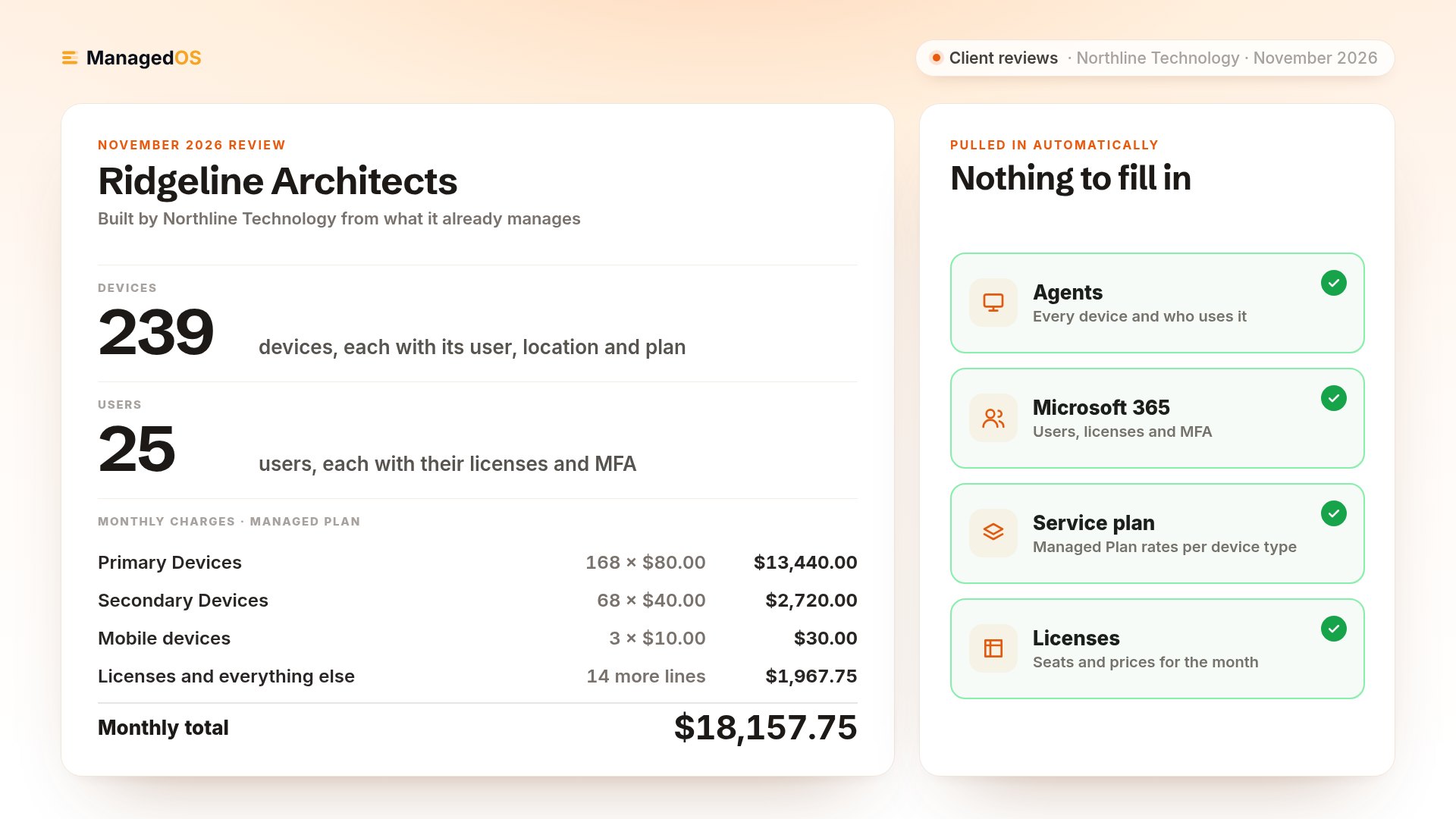
Built from what you already manage
Secure link, no client account
Requests go to your team, or to Atlas if you choose
The gap
Your tools know what’s plugged in. Your client knows what’s true.
An agent can’t tell you a PC went to the storage closet, and a license portal can’t tell you someone left last month. The client knows. Client reviews ask them every month, in one place, before the invoice goes out.
What the bill saysWhat Ridgeline told you
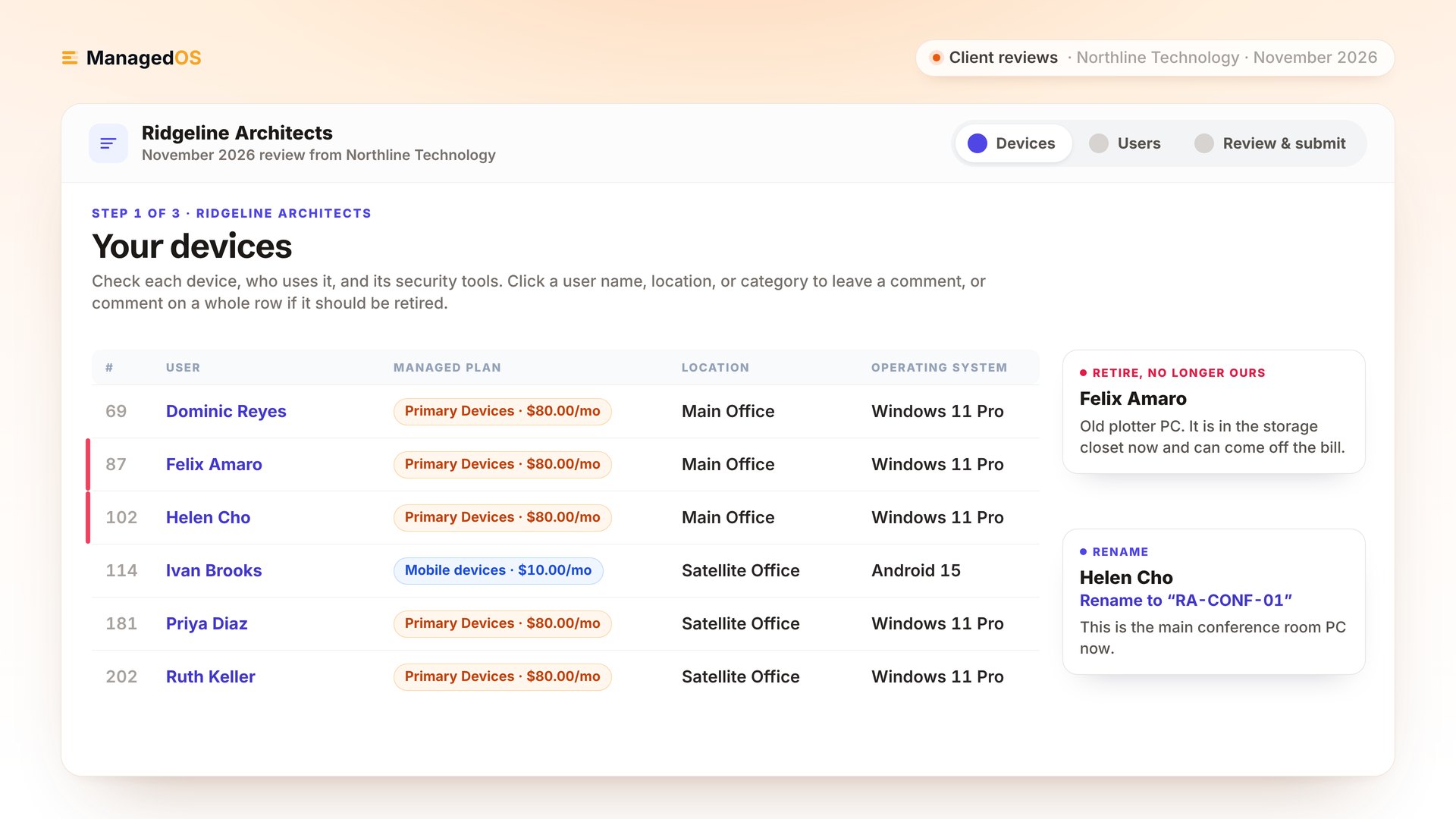
Felix Amaro’s PCPrimary device$80.00/mo
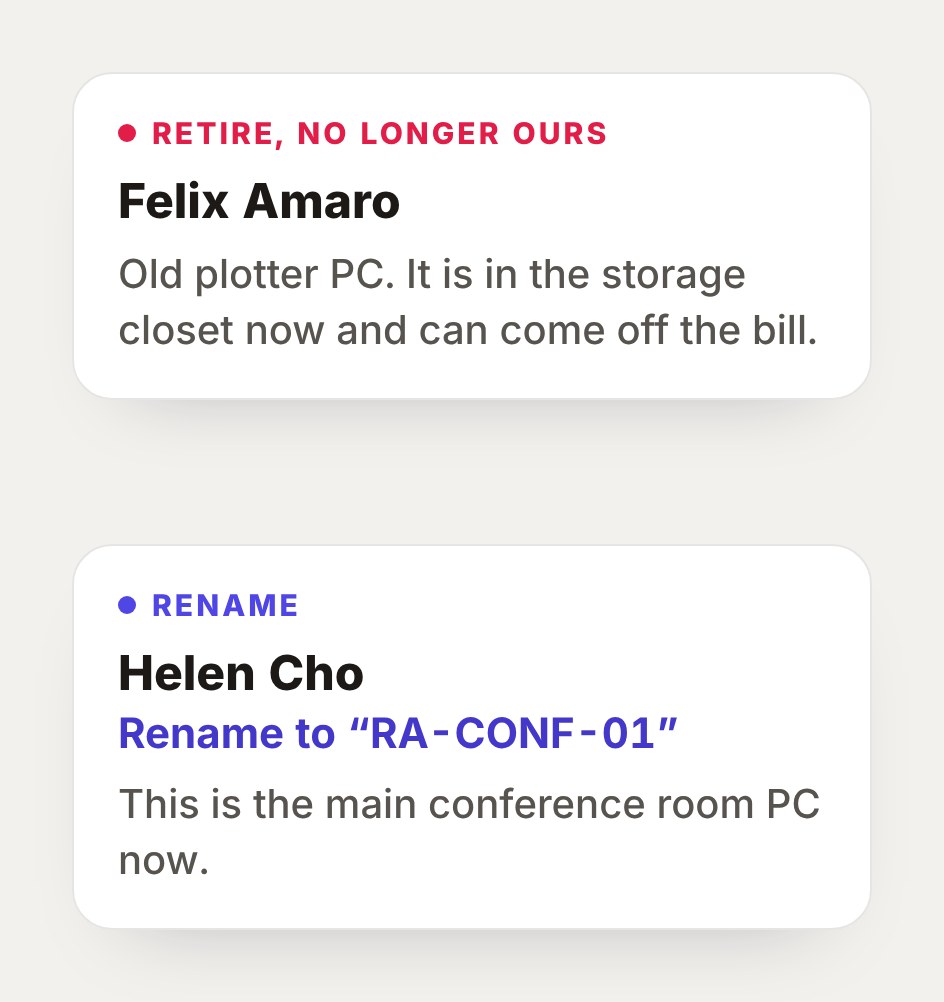
Retire, no longer ours“Old plotter PC. It is in the storage closet now and can come off the bill.”
Luis OrtegaMicrosoft 365 Business Premium$28.75/mo
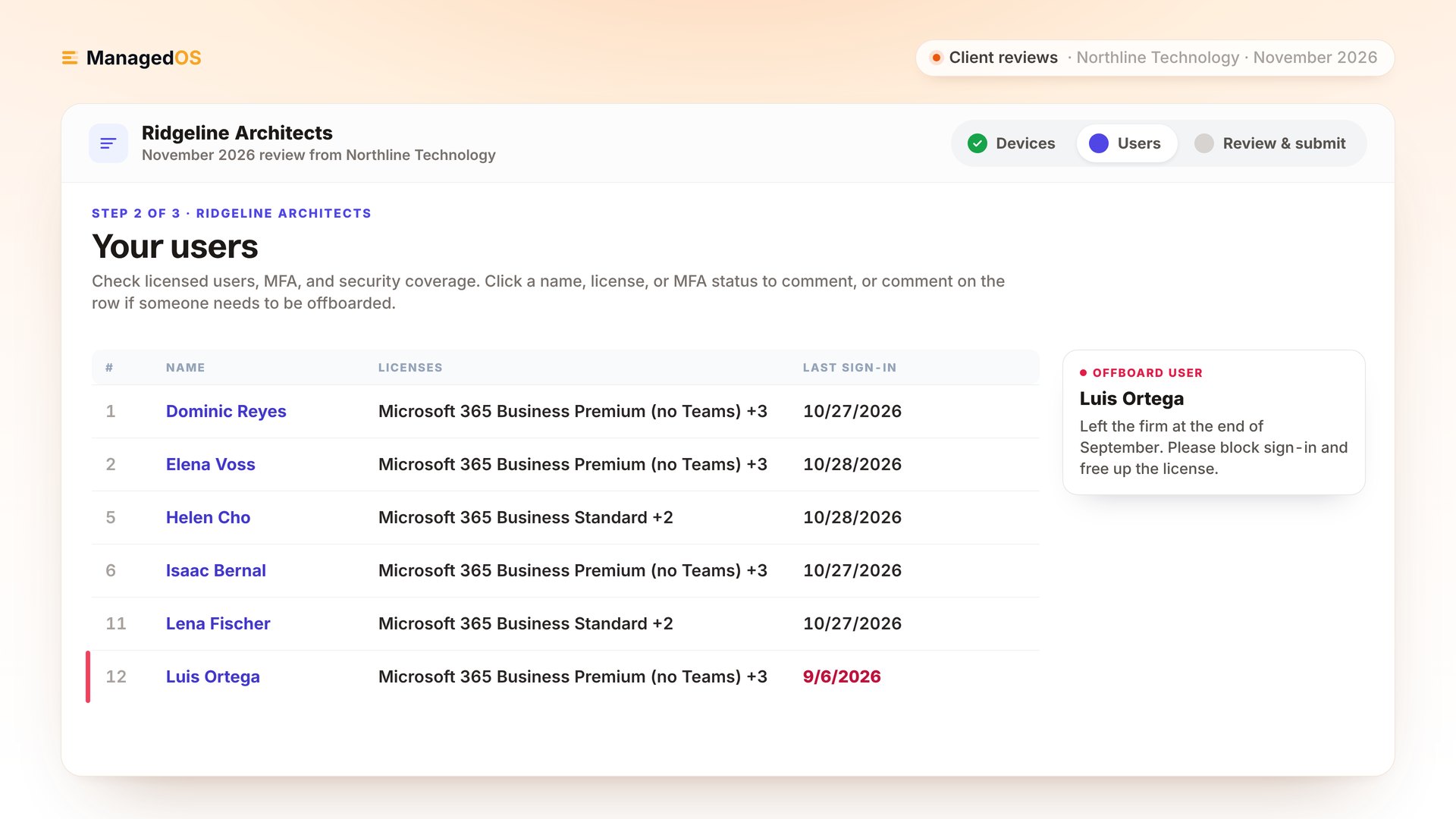
Offboard user“Left the firm at the end of September. Please block sign-in and free up the license.”
Lena FischerMicrosoft 365 Business StandardOn the bill
Remove or downgrade licenseDowngrade to Exchange Online (Plan 1)
Priya ShahNot on the bill yet
Needs a computerRevit workstation laptop, 32 GB memory. Starts Nov 3.
Marcus LeeNot on the bill yet
New user or licenseMicrosoft 365 Business Premium, Bluebeam, and Revit
What clients see
Five minutes, three short steps, one button.
Your client gets your company’s name, their month, and a review they can actually answer.
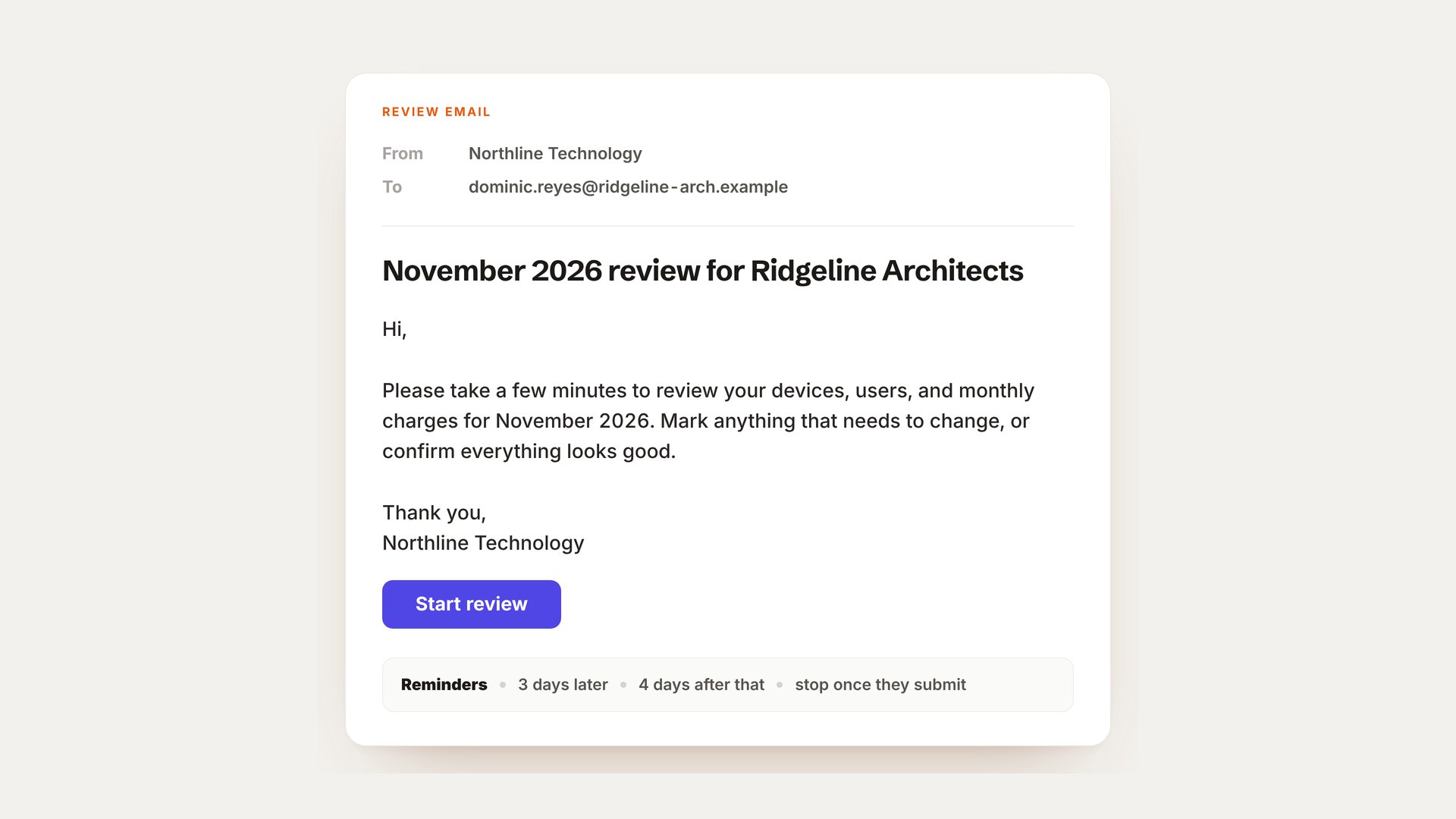
A plain email on your send day. Your name, their month, one button. Reminders follow 3 days later and 4 days after that, and stop once they submit.
Every device, with who uses it. Plan, location, and operating system on each row. Clicking a user name, location, or category leaves a comment, or a whole row can be marked to retire.
Users and their licenses. Licenses, MFA, and last sign-in. Luis Ortega hasn’t signed in since 9/6/2026, so Ridgeline flags him to offboard.
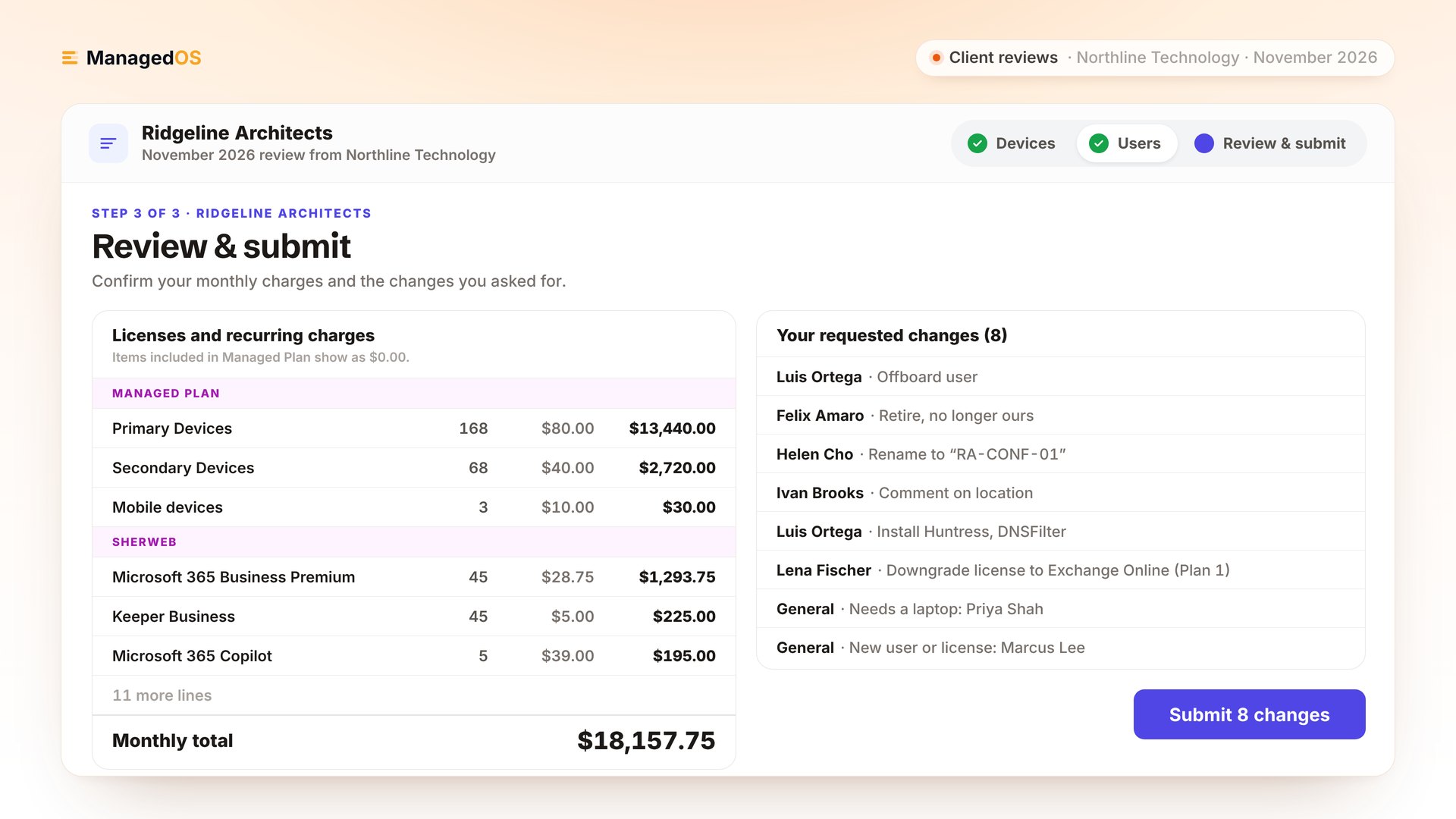
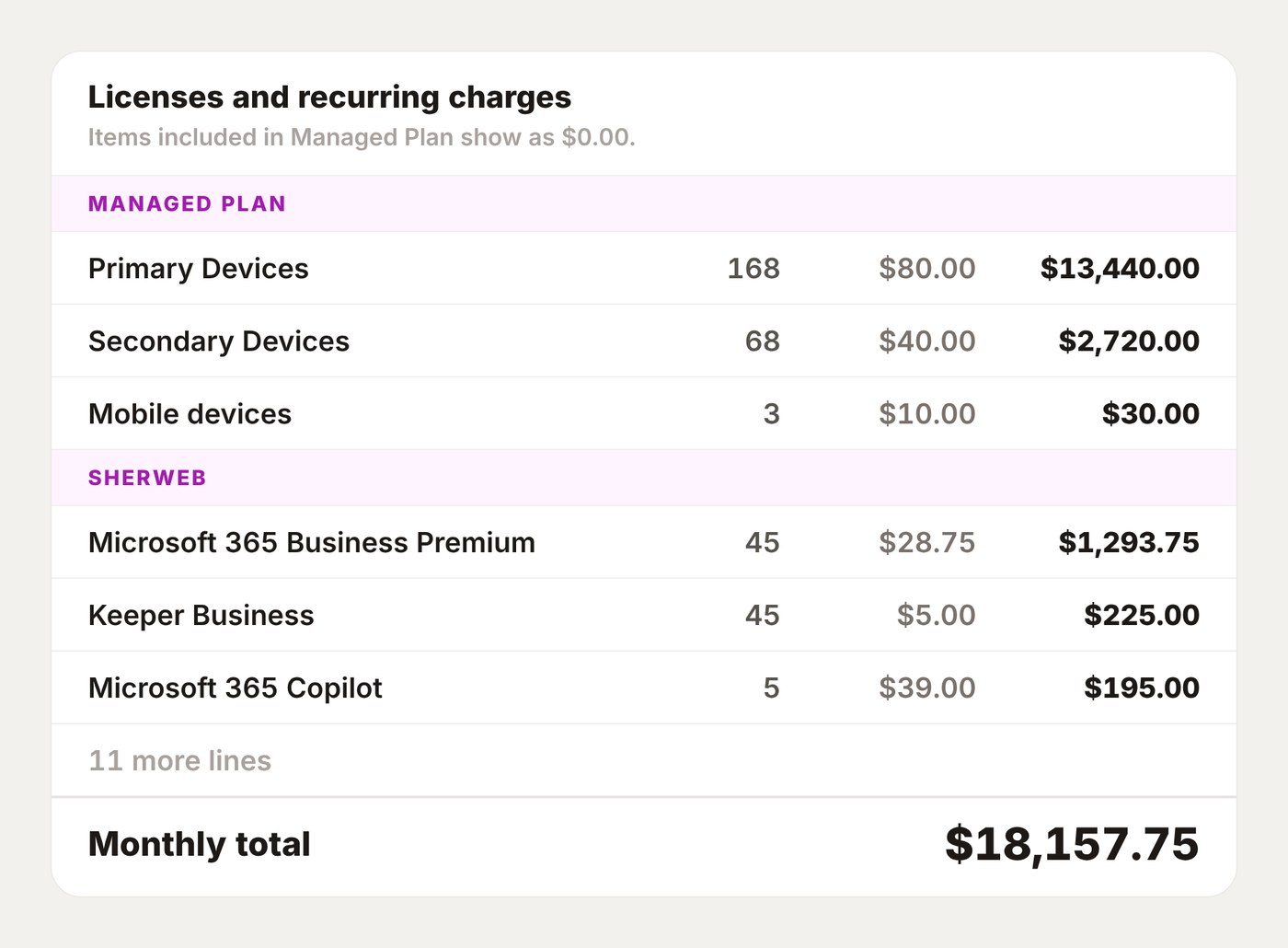
The charges, line by line. Quantity, price, and amount for every recurring line, with the monthly total. Items included in the plan show as $0.00, and you can hide prices altogether.
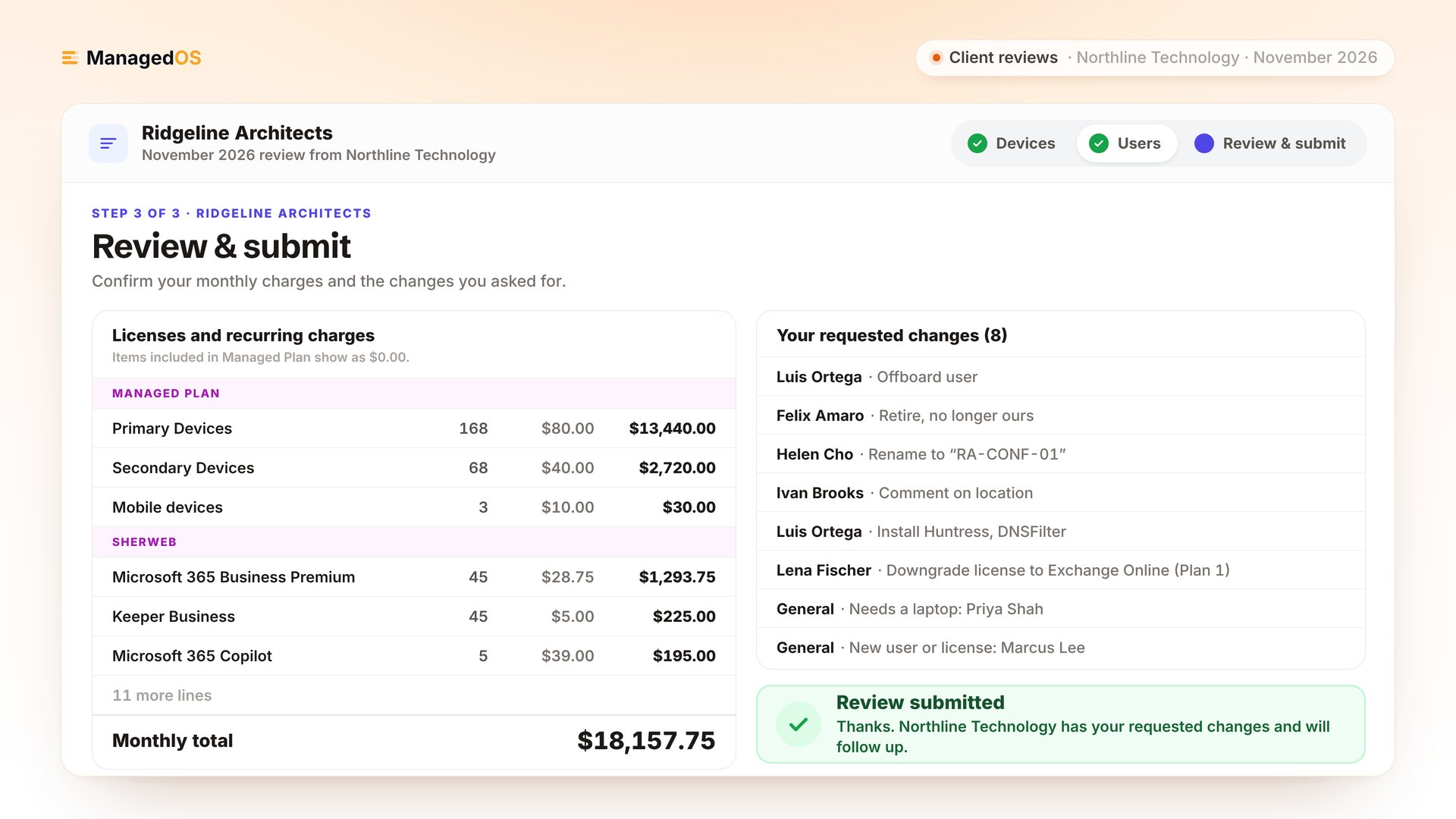
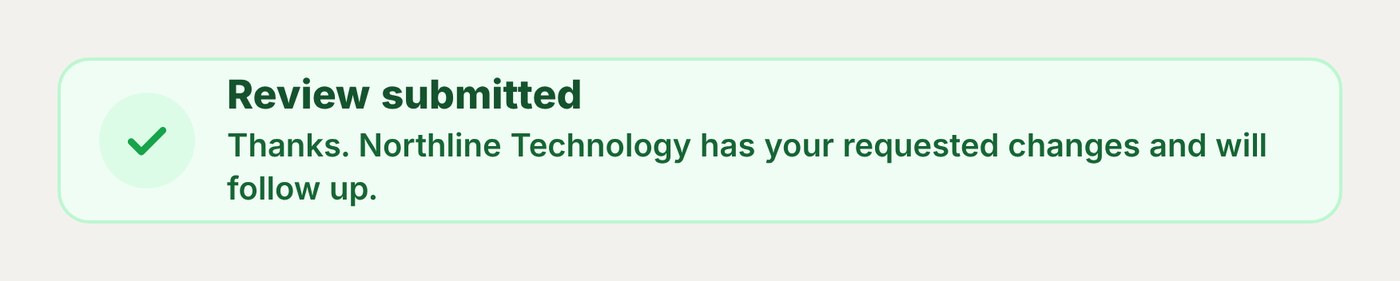
Signed off in one click. “Submit 8 changes” or “Everything looks good.” Then: “Thanks. Northline Technology has your requested changes and will follow up.”
Atlas automation
Let Atlas handle the routine requests.
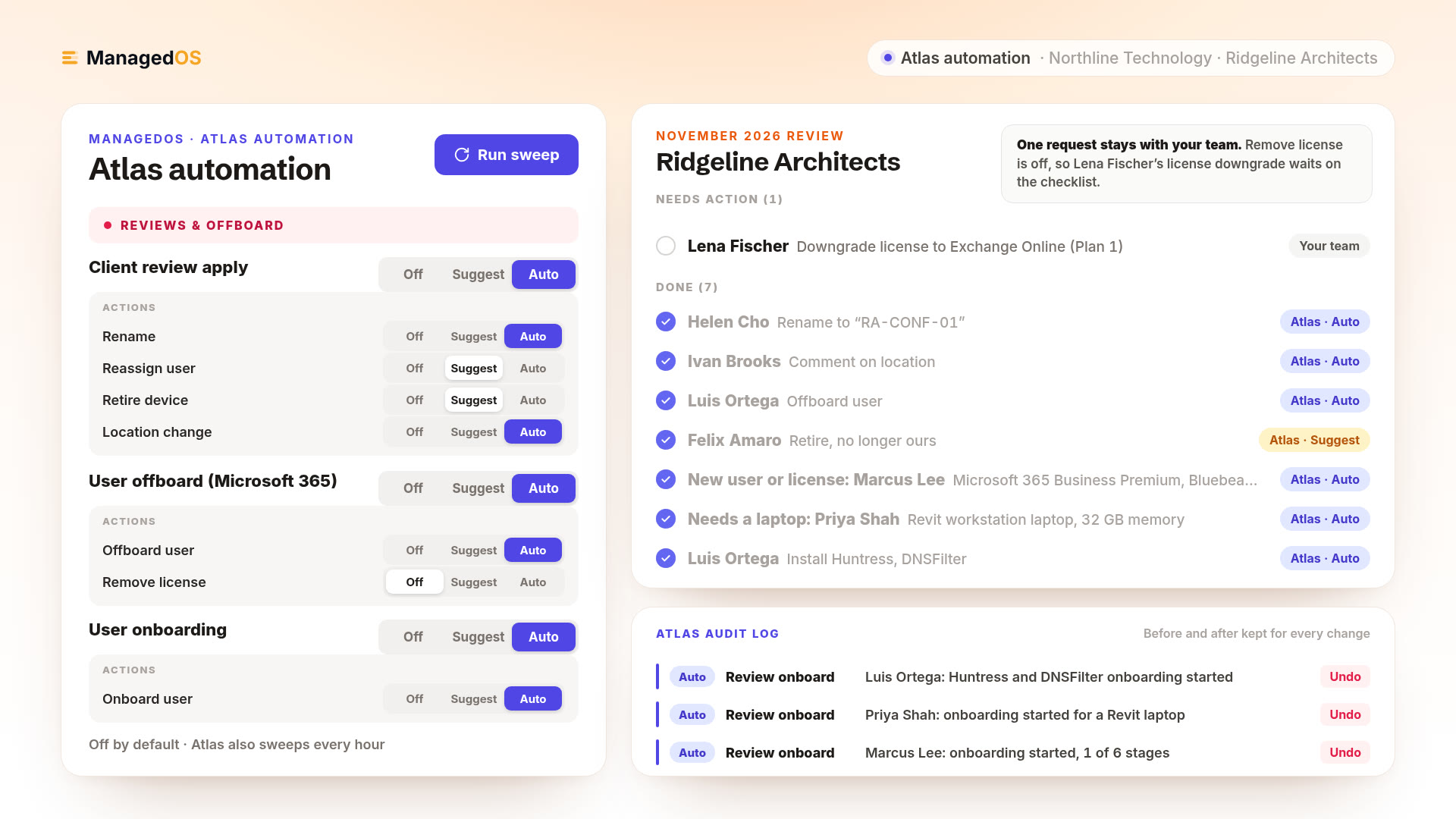
Renames, location changes, retired devices, user reassignments, Microsoft 365 offboarding, and new-user onboarding can run without a ticket. Atlas automation is off by default. You choose which request types it handles, and whether each one waits for your approval or applies on its own.
You choose
Atlas automation · Client review requests
Client review apply
Rename
Reassign user
Retire device
Location change
User offboard (Microsoft 365)
Offboard user
User onboarding
Onboard user
Everything starts off. Auto applies only when Atlas’s confidence clears the threshold you set. Anything below it waits for approval. You can also set a different mode for a single client. License downgrades stay with your team here, because Remove license is off.
Ridgeline Architects · November requests
0 Atlas applies0 wait for approval8 with your team
- Helen ChoRename DESK-PHL-007 to RA-CONF-01
- Ivan BrooksDESK-PHL-009 moved to the Philadelphia office
- Luis OrtegaOffboard: block sign-in, free up the license
- Felix AmaroRetire DESK-PHL-004, no longer ours
- Marcus LeeNew user: Microsoft 365 Business Premium, Bluebeam, Revit
- Priya ShahNeeds a laptop: Revit workstation, 32 GB memory
- Luis OrtegaInstall Huntress and DNSFilter on a new machine
- Lena FischerDowngrade license to Exchange Online (Plan 1)
Every change is logged. The Atlas audit log keeps the before and after for each one.
Undo is one click. It puts back a rename, a location, a user, or a retired device, or stops an onboarding Atlas started, and reopens the request. Undoing an offboard turns sign-in back on. Licenses it removed are reassigned by hand in Microsoft 365.
You pick the steps. Choose which offboard steps run for each client. Onboarding opens the plan-based onboarding checklist, filled in from the client’s request.
Close up
The details your clients notice.
The month
See who answered, who’s halfway, and who needs a nudge.
Northline Technology’s November board, with every email, reminder, code, and sign-off on one timeline. Times are Eastern.
ManagedOS · Northline Technology
Client reviews
1Changes requested
2No response yet
1Marked all good
0Not sent
Allegheny StructuralNo response (expired)brianna.voight@allegheny-structural.example
Sent · Nov 1, 8:00 AM
Reminder · Nov 4, 8:00 AM
Last reminder · Nov 8, 8:00 AM
Link expired · Nov 11, 7:13 PM
Brandywine InteriorsAll goodaaron.fitch@brandywine-interiors.example
Sent · Nov 1, 8:00 AM
Nov 3 · opened 4:24 PM · all good 5:36 PM
Keystone Civil GroupIn progressamelia.crowe@keystone-civil.example
Sent · Nov 1, 8:00 AM
Nov 4 · reminder 8:00 AM · opened 10:24 AM · 3 changes so far
Ridgeline Architects5 of 8 changes opendominic.reyes@ridgeline-arch.example
Sent · Nov 1, 8:00 AM
Nov 2 · opened 4:24 AM · 8 changes 5:36 AM
Follow-up
Every request becomes a checklist item. You decide what Atlas handles.
Requests land on a checklist for your team. With Atlas automation off, the default, nothing changes in ManagedOS until you make the change and check it off. Turn it on, and the request types you pick are applied by Atlas or wait for your approval.
1
See who answeredThe board counts who asked for changes, who said all good, and who hasn’t answered.
2
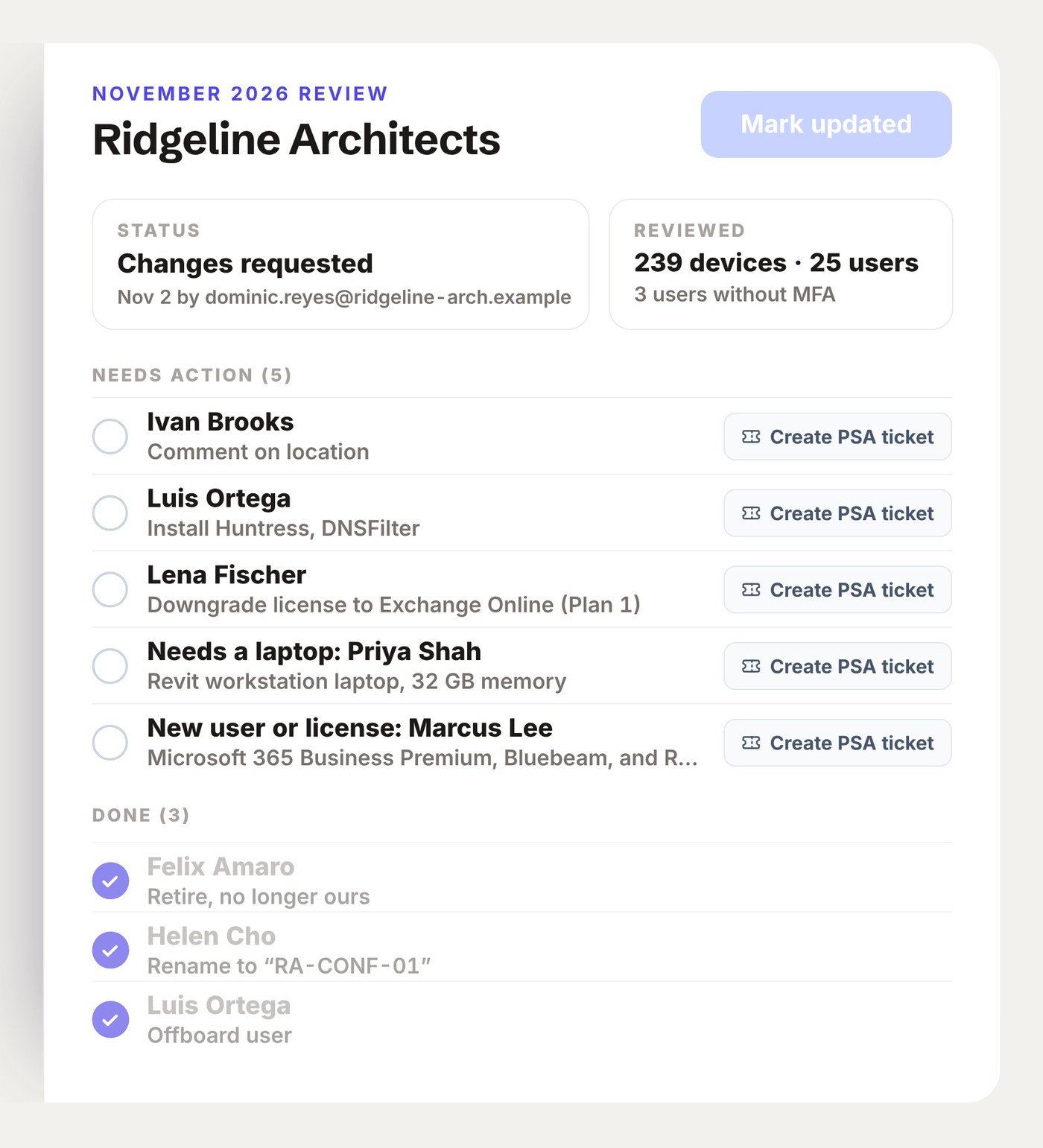
Open the reviewStatus, what they reviewed (239 devices, 25 users), and every request that needs action.
3
Do the work, check it offCreate a PSA ticket for any request, then Mark updated. Done items move to Done.
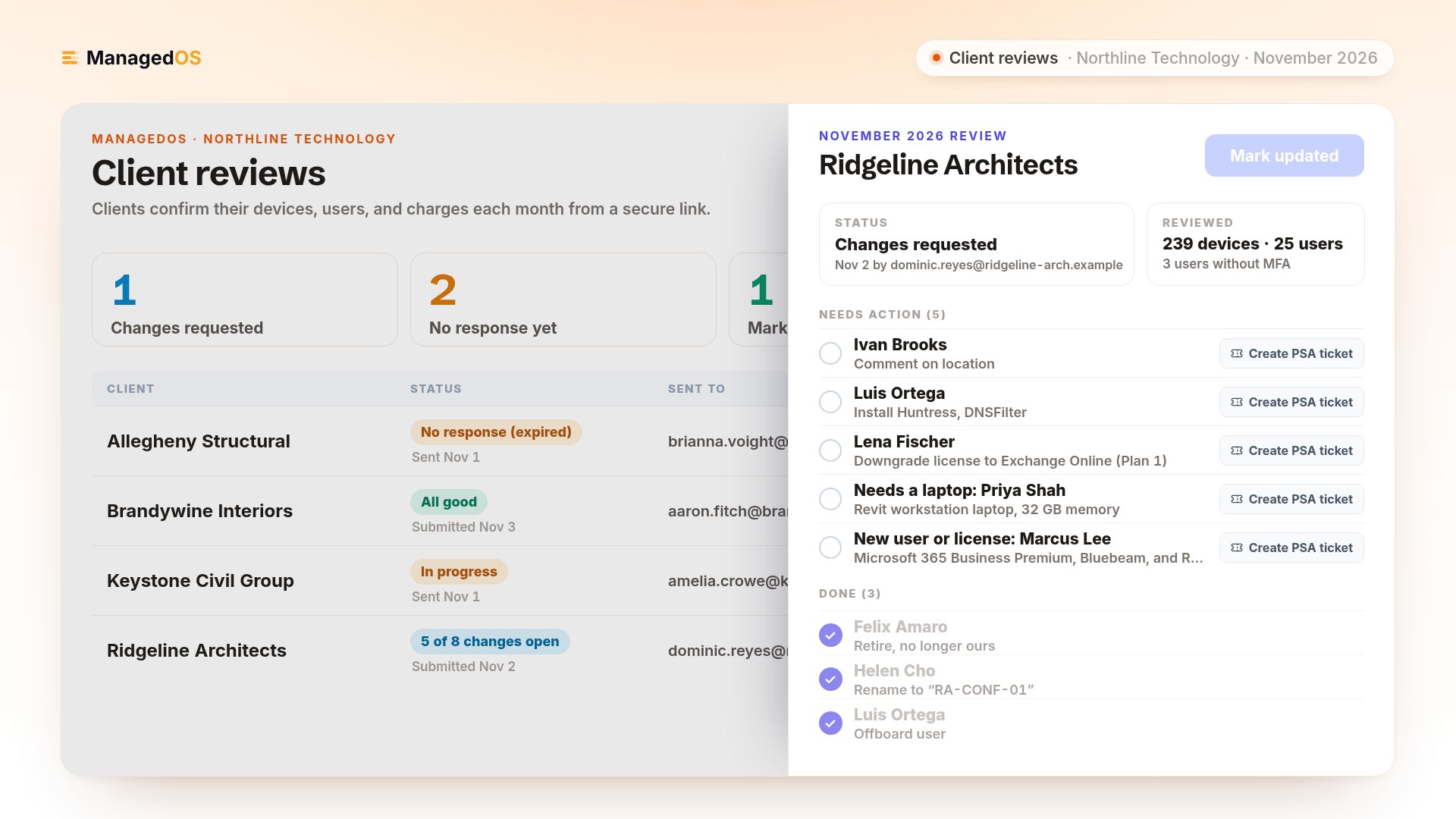
One click to a PSA ticket. Map the client to a company in your PSA, then send any request over as its own ticket, titled with the change, and carrying the review month, the client’s note, and who asked.
- ConnectWise PSA
- Autotask
- HaloPSA
- Syncro
- Kaseya BMS
- Pulseway PSA
- ServiceNow
- Freshservice
Same numbers
You and your client look at the same numbers.
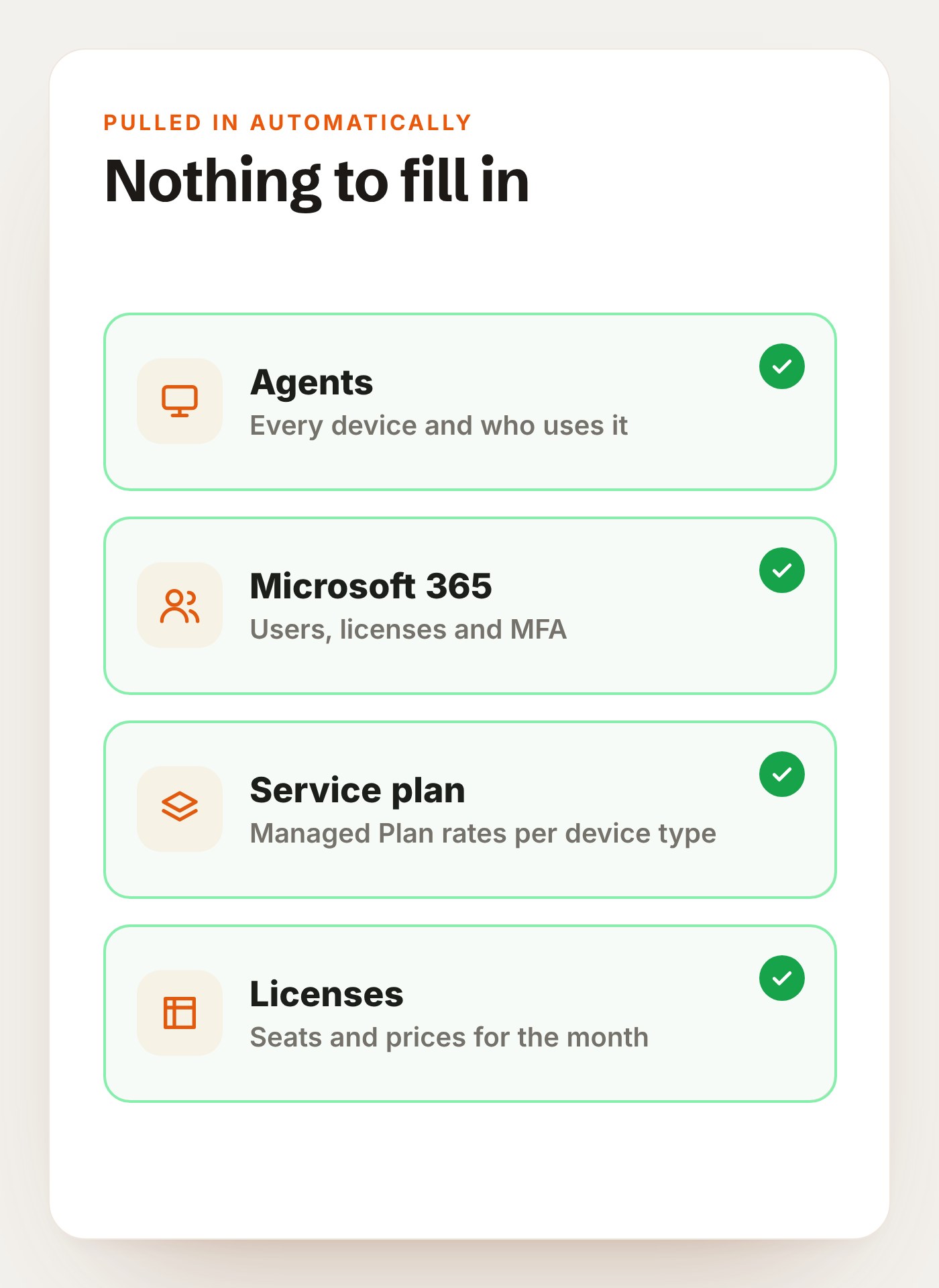
The review is built from the devices, users, service plan, and licenses already in ManagedOS, so what your client checks is what your team sees.
A
AgentsEvery device and who uses it
M
Microsoft 365Users, licenses, and MFA
P
Service planManaged plan rates per device type
L
LicensesSeats and prices for the month
November 2026 · Ridgeline Architects
239devices
25users
Monthly total$18,157.75
17 lines
N
Your team in ManagedOSNorthline Technology’s review board
R
Your client’s reviewWhat Ridgeline checks and signs off
Settings
Set it once. It runs every month.
Pick a send day, write the emails, and choose whether clients see prices. Opted-in clients get their link each month, and you can always send by hand.
Monthly client review
Schedule and emails
1. Schedule2. Emails3. Review
When should reviews go out?
Opted-in clients get their review link on the send day each month. Turn automatic sending on or off with the switch at the top. You can always send by hand.
Send daySends on the 1st of each month (UTC).
1st of the monthShow pricesClients see their recurring charges on the last page. Licenses in their service plan show as included.
What should the emails say?
The first email goes out on the send day. Each reminder waits the number of days you pick after the email before it, and reminders stop once the review is submitted.
Email 1 Day 1Email 2 Day 4Email 3 Day 8+ Add reminder
Send if not submitted after
3 days after email 1Subject
Reminder: {{month}} review for {{client}}
Message
Hi,
A quick reminder to review your devices, users, and monthly charges for {{month}}. It only takes a few minutes.
Thank you,
{{msp}}
Review
Reviews send automatically on the 1st. Prices are shown. Here is every email in order, filled in with sample data.
- 1Send dayNovember 2026 review for Ridgeline Architects
- 2Day 4, 3 days later if not submittedReminder: November 2026 review for Ridgeline Architects
- 3Day 8, 4 days later if not submittedLast reminder: November 2026 review for Ridgeline Architects
Review alerts
When a client submits, ManagedOS emails the people you pick, with what they asked for. These emails go to your MSP team, not your clients. You can also change them under MSP Notifications.
Ridgeline Architects submitted their November review8 changes requested by dominic.reyes@ridgeline-arch.example
How it works
One month at Ridgeline Architects.
- 1Nov 1Built for you239 devices, 25 users, and 17 charge lines, pulled from what Northline already manages.
- 2Nov 1, 8:00 AMSent“November 2026 review for Ridgeline Architects” goes to dominic.reyes@ridgeline-arch.example.
- 3Nov 2, 4:24 AMClient checksOpened, code entered, devices and users reviewed, eight comments left.
- 4Nov 2, 5:36 AMSigned off“Submit 8 changes.” Northline’s team gets the review alert.
- 5Since thenYou follow upThree done: offboard, retire, rename. Five open, each a click from a PSA ticket.
FAQ
Questions MSPs ask.
Does anything change when a client asks for it?
Only if you turn on Atlas automation, which is off by default. With it off, requests land on a checklist for your team, and nothing changes in ManagedOS until your team makes the change and checks it off with Mark updated. With it on, you pick which request types Atlas handles: renames, location changes, user reassignments, and device retirements in ManagedOS, Microsoft 365 offboarding (block sign-in, revoke sessions, remove licenses), and onboarding for new users, computers, and tool installs, which Atlas starts as an onboarding checklist. Set each one to Suggest to approve it first, or Auto to have Atlas apply it and check it off. Any request type you leave off stays with your team.
Can I undo what Atlas did?
Yes. The Atlas audit log keeps the before and after for every change. Undo puts back a rename, a location, a user, or a retired device, or stops an onboarding Atlas started, and reopens the request on the checklist. Undoing an offboard turns sign-in back on. Licenses it removed are reassigned by hand in Microsoft 365.
Can a request become a PSA ticket?
Yes, one click per request for ConnectWise PSA, Autotask, HaloPSA, Syncro, Kaseya BMS, Pulseway PSA, ServiceNow, and Freshservice. Map the client to a company in your PSA first. Each request becomes its own ticket, titled with the change, and including the review month, the client’s note, and who asked.
Does my client need an account?
No. They open a secure link that’s good for 30 days and enter a 6-digit code emailed to them. The code expires in 15 minutes, and they stay signed in for 12 hours.
When do reviews go out, and who gets reminded?
Opted-in clients get their link on your send day each month, and you can send by hand any time. The sequence is a first email plus up to 5 reminders. By default, a reminder goes 3 days after the first email and a last reminder 4 days after that. Reminders stop once the review is submitted.
What can clients ask for?
Rename a device, retire one that’s no longer theirs, change its assigned user, install missing tools, remove or downgrade a license, offboard a user, add a new user or license, ask for a computer, or leave a comment or note.
Do clients have to see prices?
No. Turn off Show prices and the review covers devices and users only. With prices on, clients see their recurring charges on the last page, and licenses in their service plan show as included.
Who hears when a client submits?
The people you pick in Review alerts. These emails go to your MSP team, not your clients.
Make sign-off part of every month.
Client reviews are part of ManagedOS for MSPs.