ManagedOS features
Every tech on every client. Only the pages they need.
Invite your staff once and their access reaches every client you manage, including the ones you add next. Custom roles set No access, View, or Manage for each ManagedOS page, and account managers get the emails for the clients they look after.
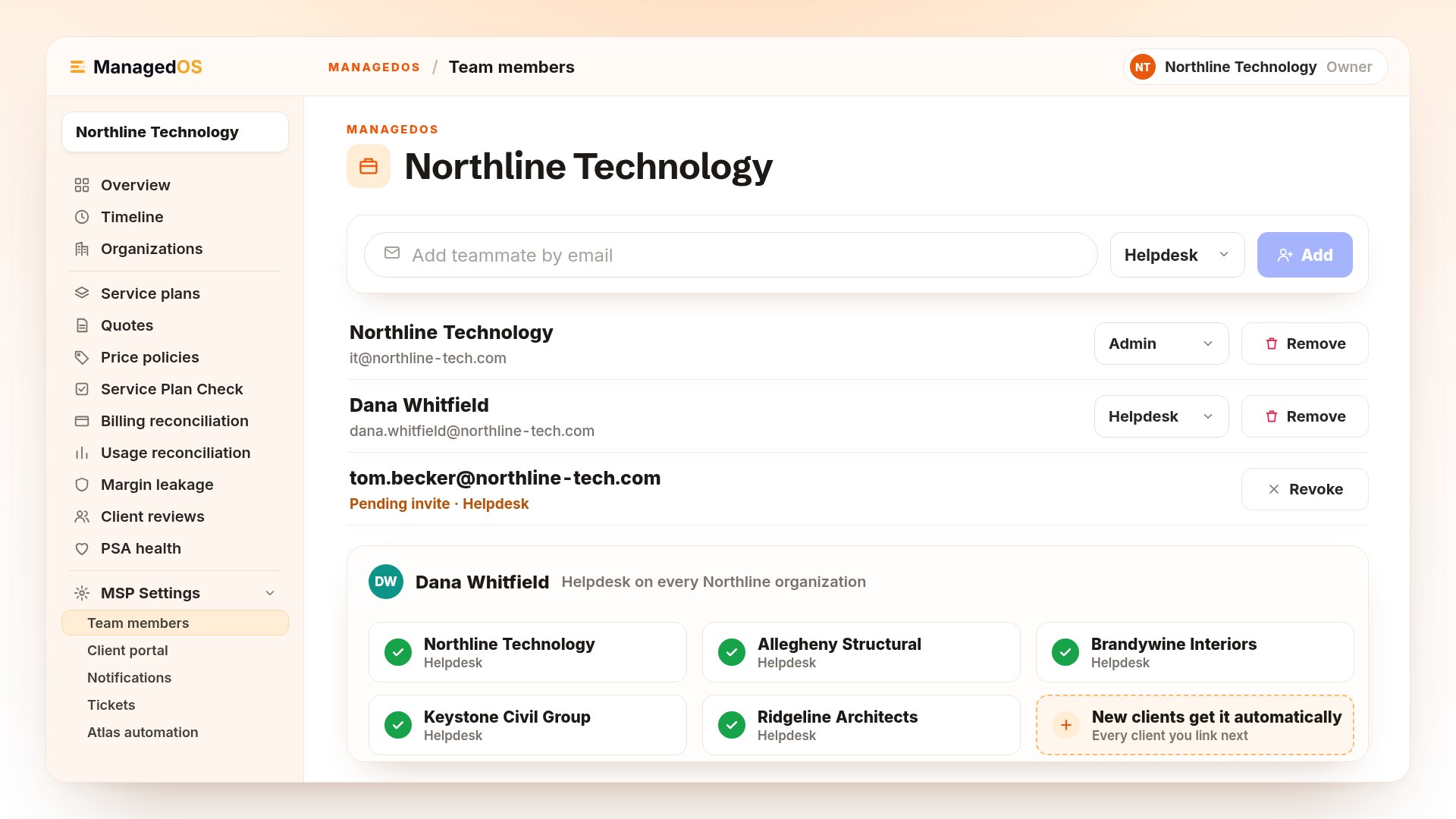
One invite covers every client
No access, View, or Manage per page
Account managers get their clients’ emails
How access works
Add people to your MSP once. ManagedOS copies them to every client.
Your team lives on your MSP organization. Each person’s role is copied onto every client you manage, and onto each new client the moment you link it, so nobody waits for access and nobody keeps access they shouldn’t.
- One role, everywhere. Change someone’s role and it updates on all of your client organizations.
- New clients included. Link a client and your whole team is already there.
- Direct invites win. If a client invites someone to their own organization directly, that invite keeps its own role.
Your MSP
Northline Technology
NTOwner
DWDana Whitfield · Helpdesk
TBTom Becker · Helpdesk
Account managers New
Give every client an account manager. Their emails follow.
Pick a teammate for each client. They get that client’s review results, new tickets, quote approvals, and onboarding requests, and a My accounts view with just their clients. Reassign a client and the emails move with it. The owner still sees everything.
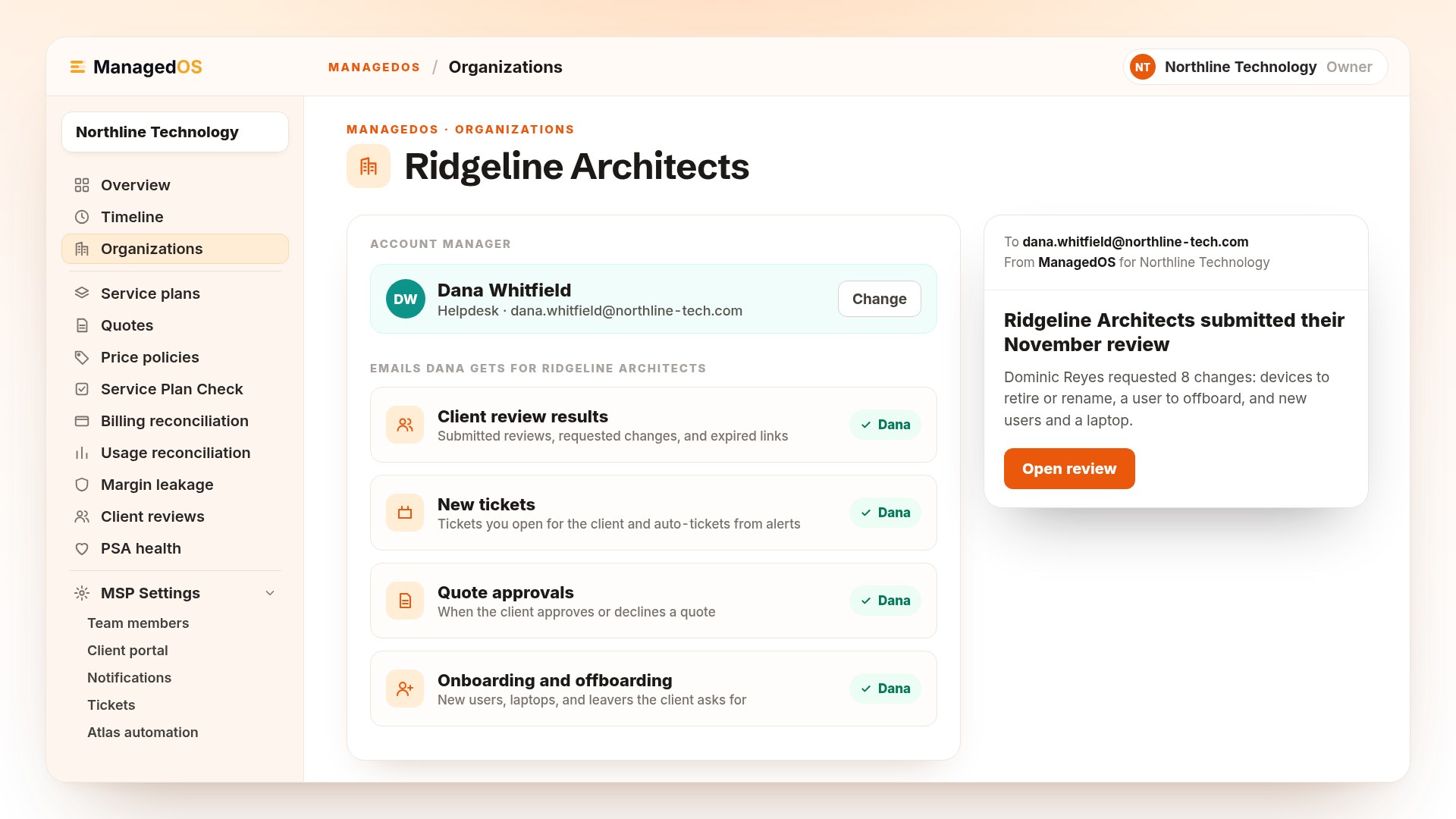
Where each client’s emails go
Pick a client, then change its account manager.
Account manager
Role editor
Build a role for the job, not the person.
Name it, pick what it can open, check the summary, and save. The new role shows up in Team members the next time you invite someone.
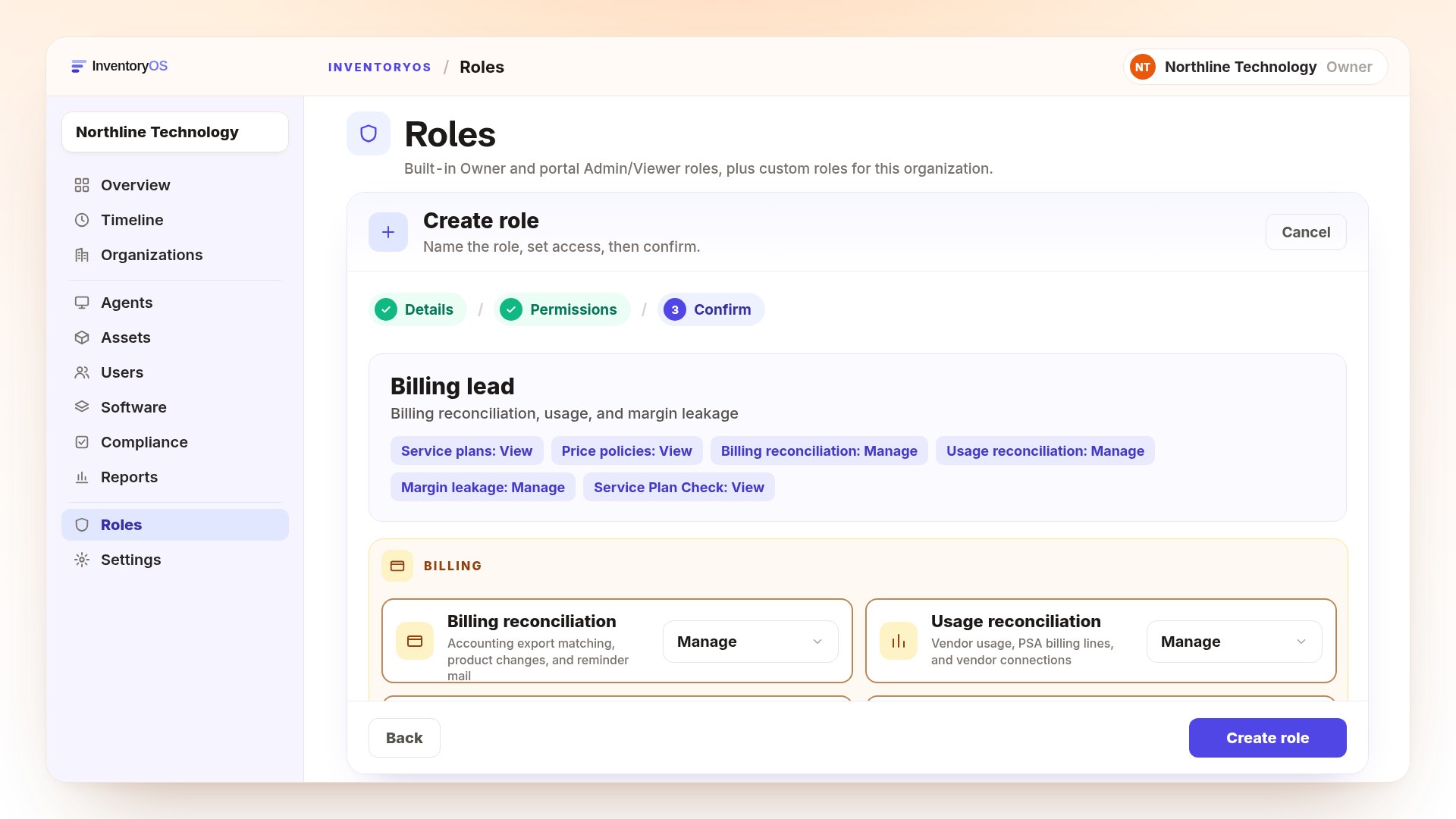
Start fromBegin from Like Viewer, Helpdesk, Tech, or Auditor, then change what you need.
One role, every portalSwitch the portal between InventoryOS and ManagedOS. Permissions for the other portal are kept when you switch.
Some things stay with the ownerSubscription billing and permanently deleting an organization can’t be given to a custom role.
Permissions
Every ManagedOS page, in five groups.
Each page gets its own level. View lets someone open the page and read it. Manage lets them change it.
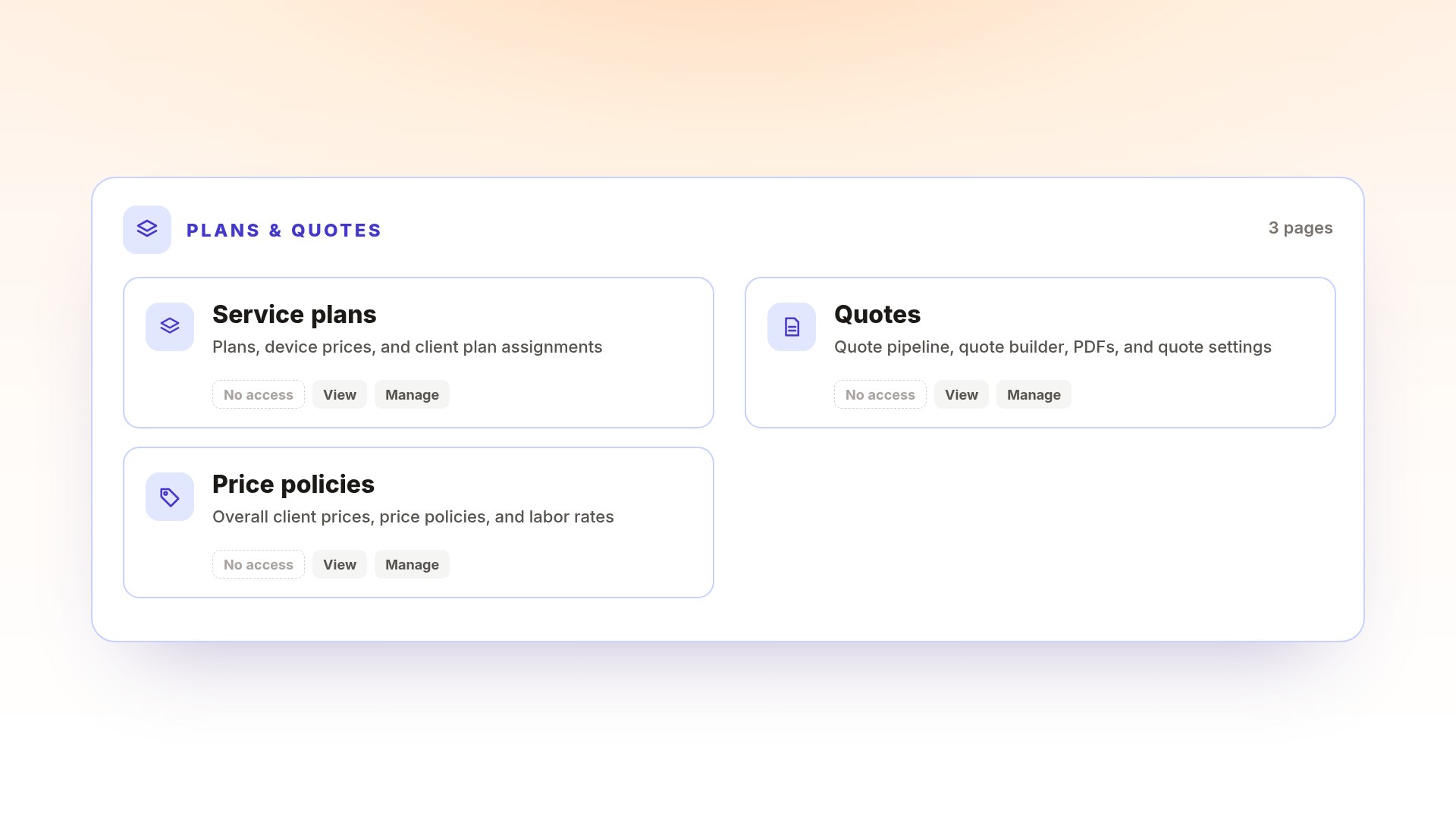
Plans & quotes. Service plans and their device prices, the quote pipeline and builder, and your price policies and labor rates.
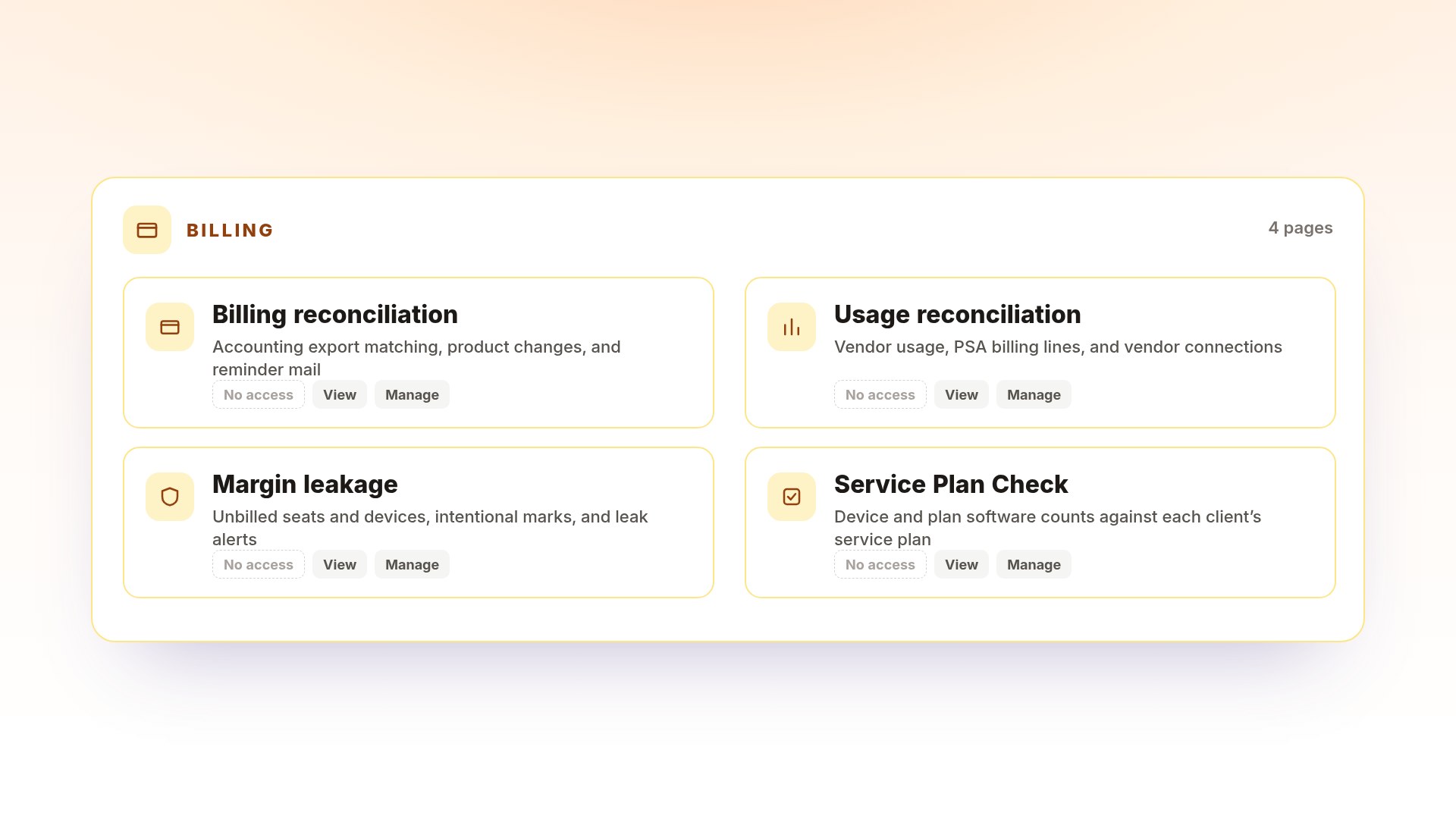
Billing. Billing and usage reconciliation, margin leakage, and Service Plan Check, which compares each client’s devices and software with their plan.
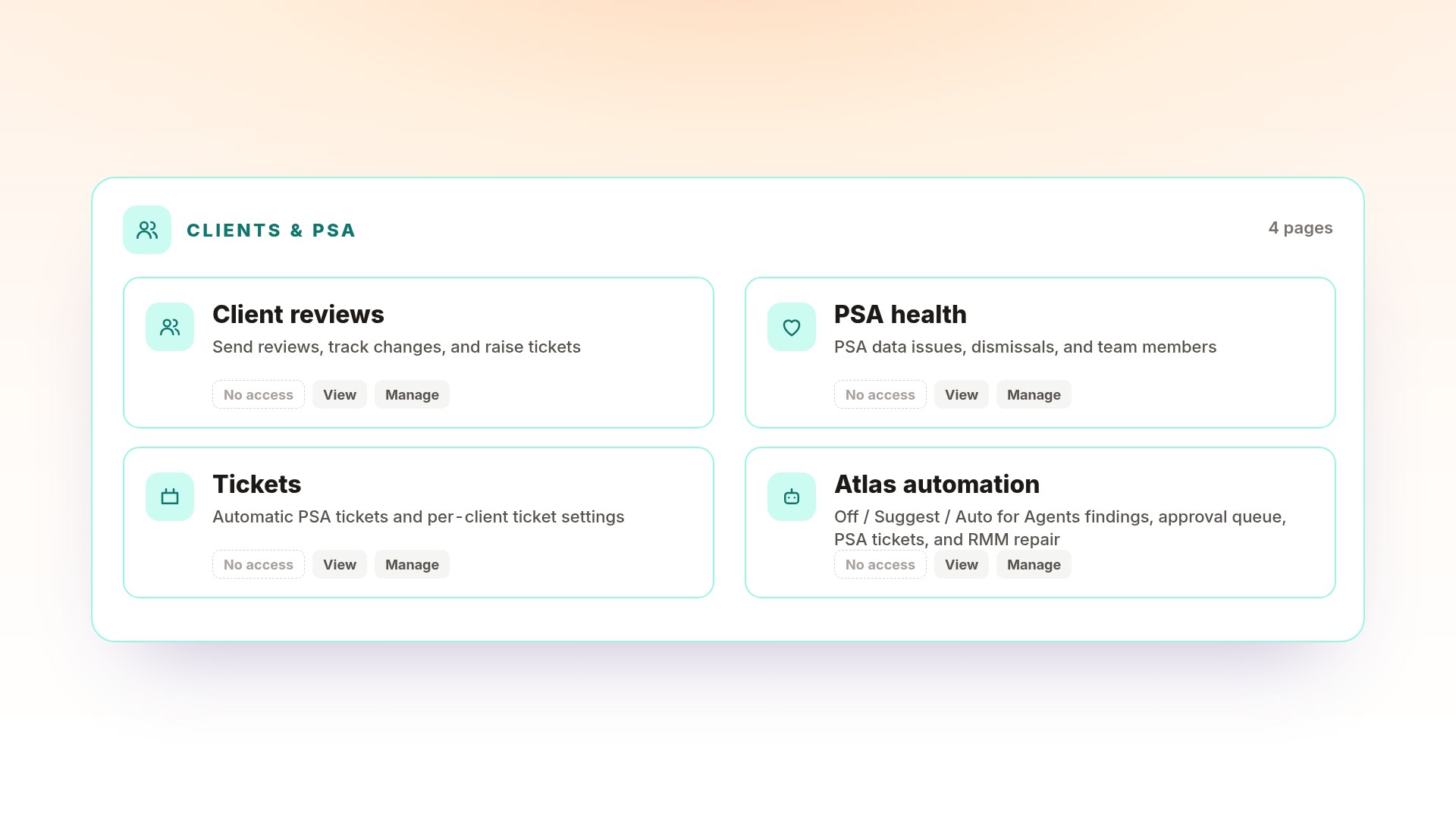
Clients & PSA. Client reviews, PSA health, automatic tickets, and Atlas automation. This is where a helpdesk role usually lives.
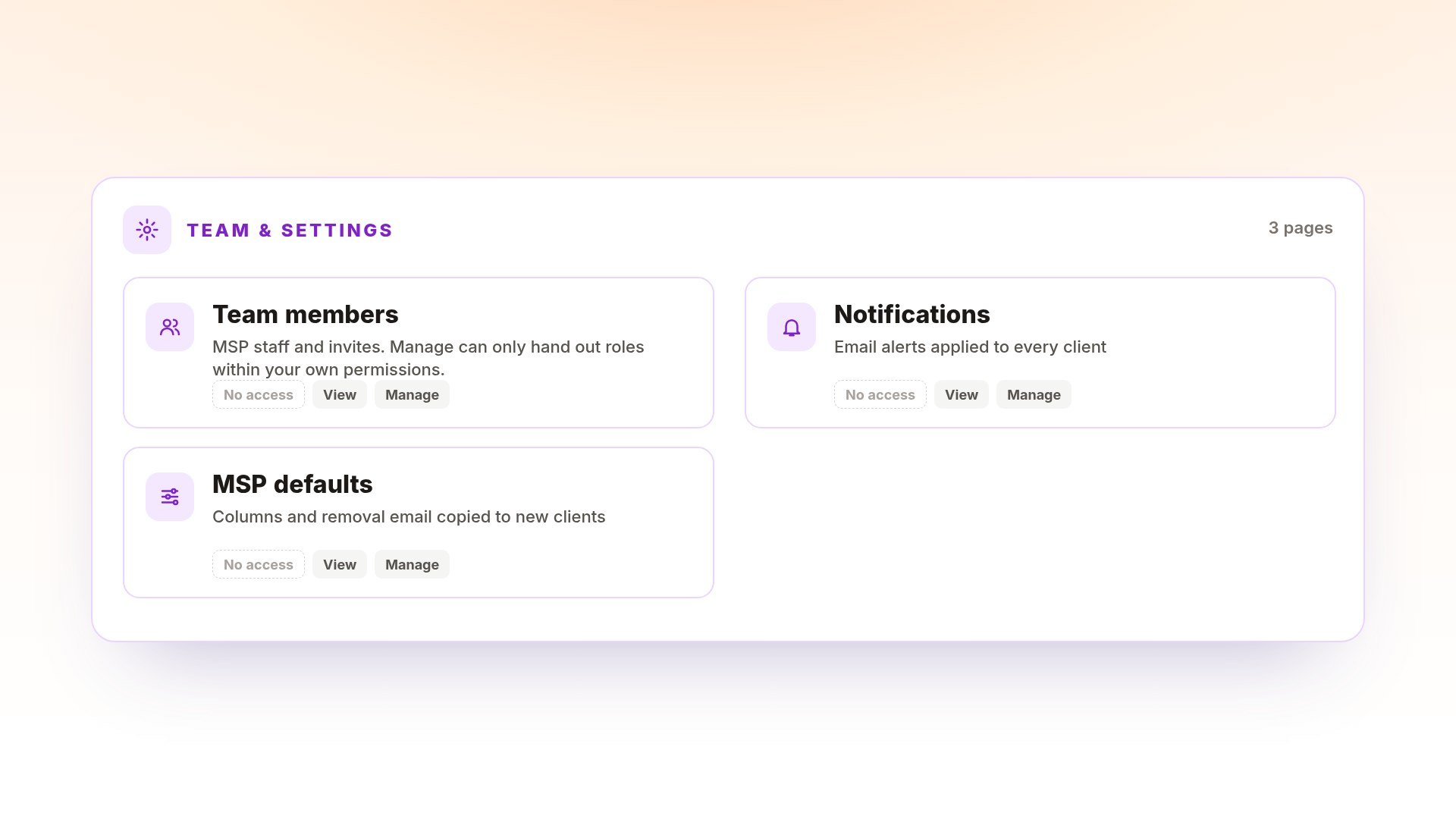
Team & settings. Team members, the email alerts you apply to every client, and the defaults new clients start with. Someone with Manage on Team members can only hand out roles within their own permissions.
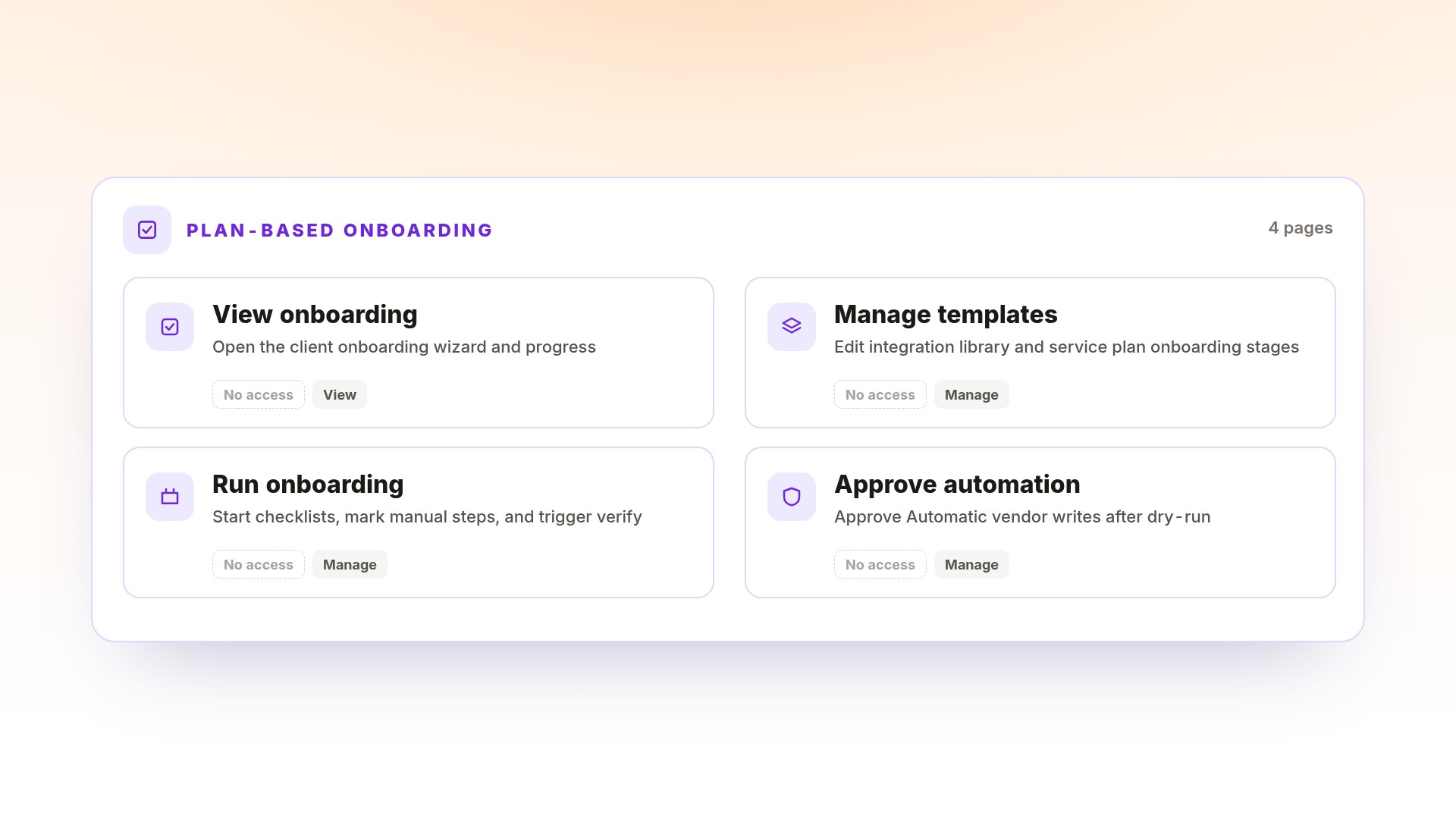
Plan-Based Onboarding. View onboarding is view only. Manage templates, Run onboarding, and Approve automation are each a single switch: No access or Manage.
Who sees what
The side menu only shows what a role can open.
Pick a role. Pages set to No access drop out of that person’s ManagedOS menu, so there’s nothing to click that they can’t use.
Guardrails
Hand out access without handing out the keys.
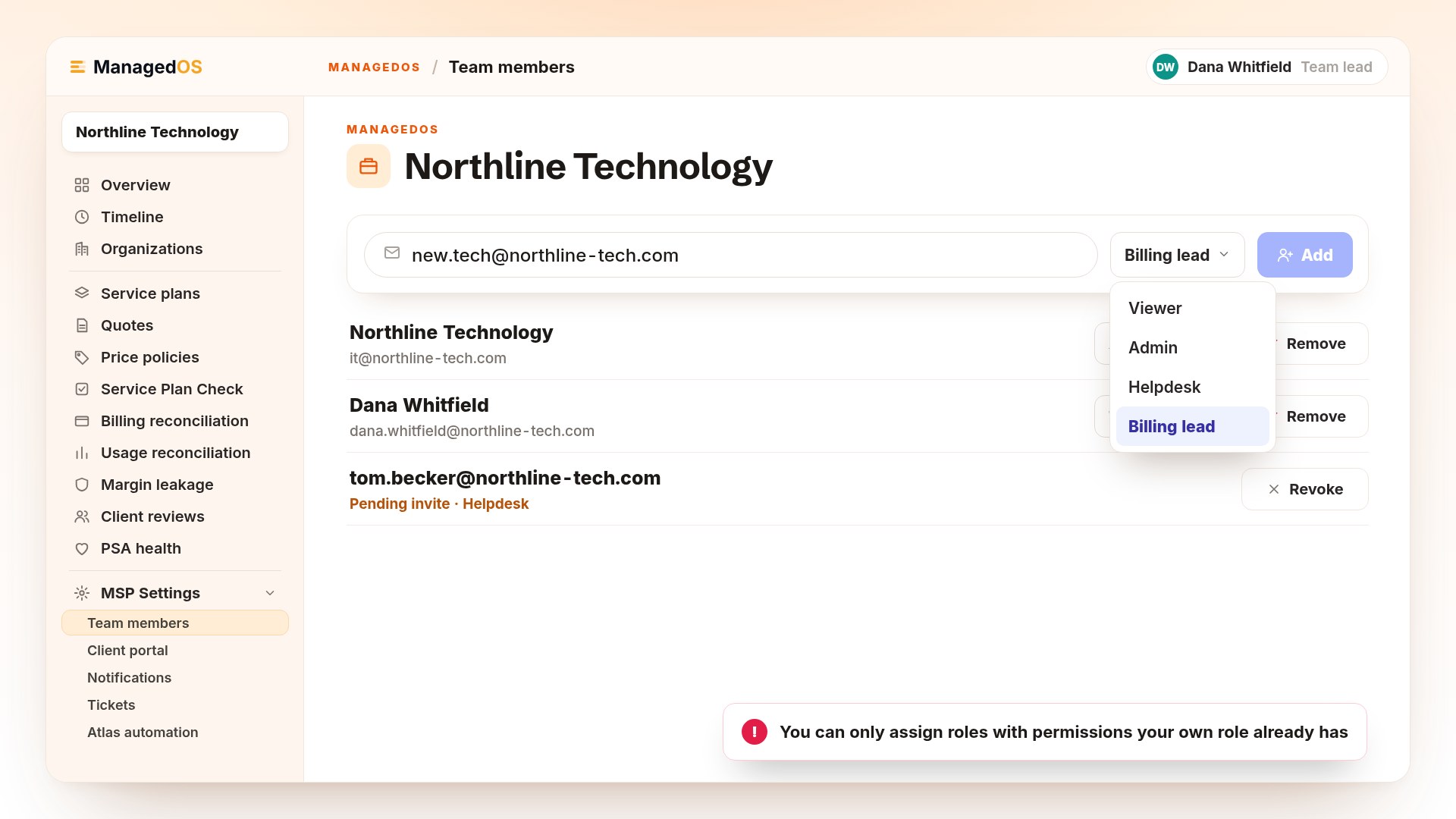
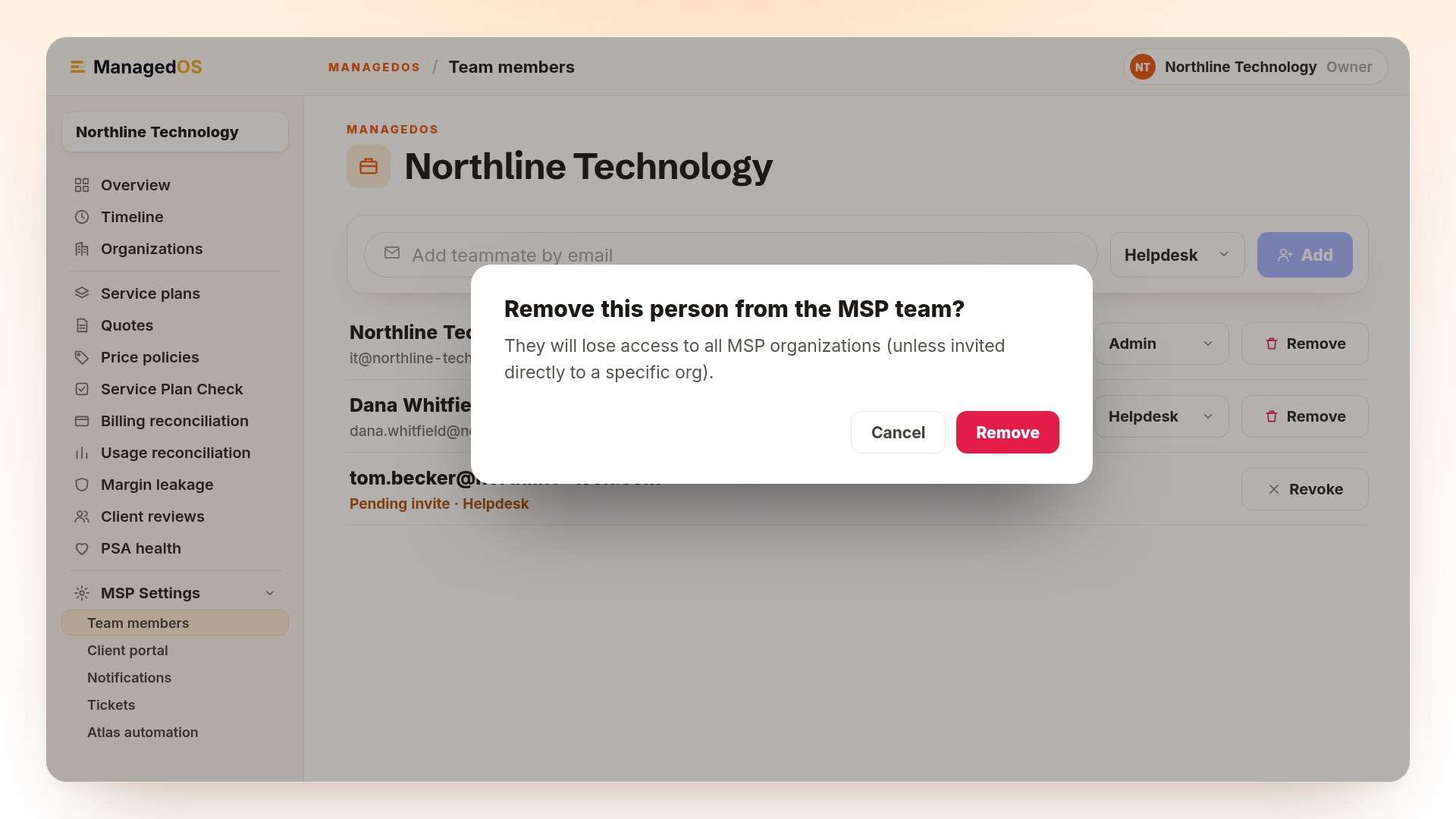
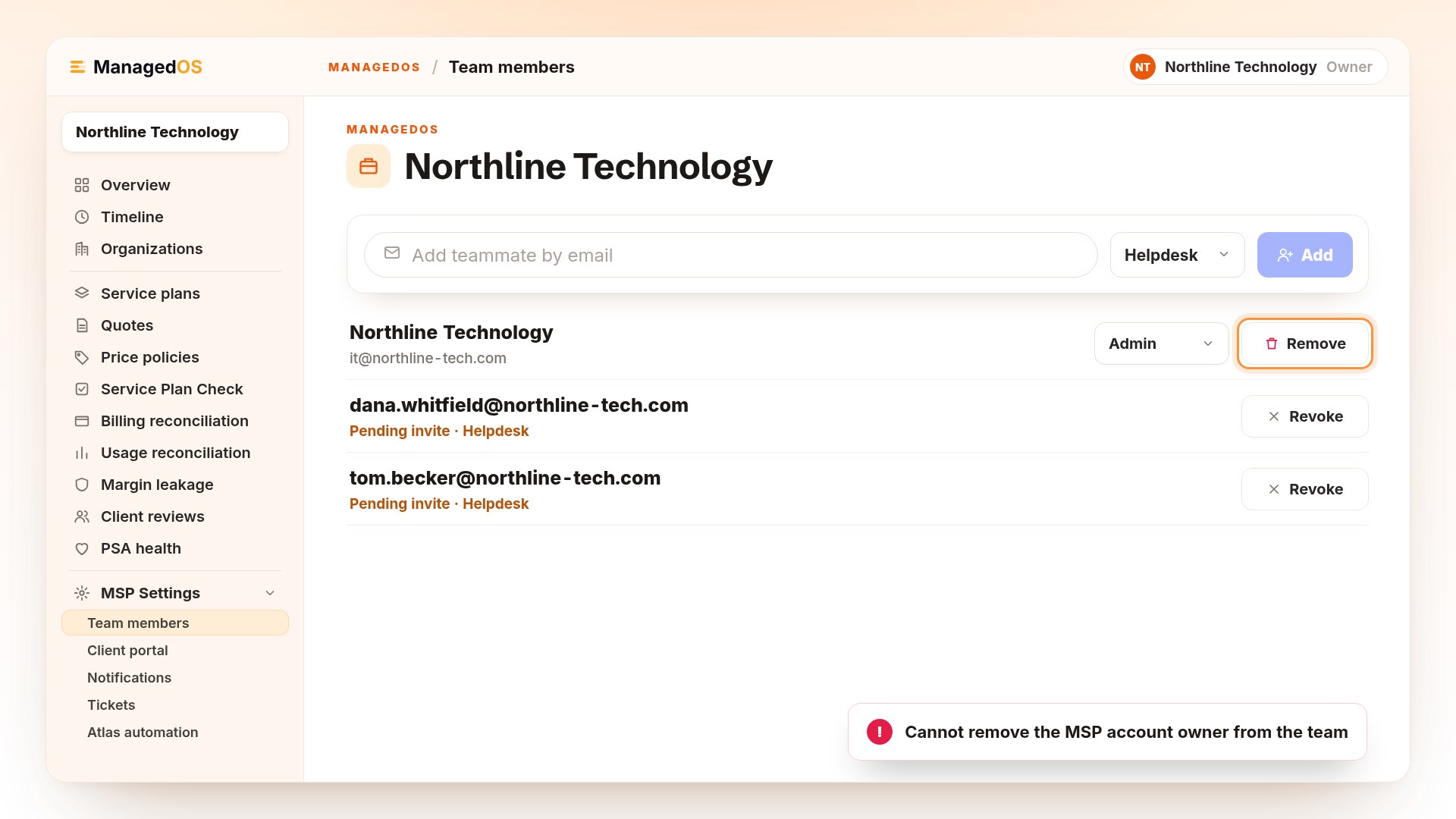
7 daysInvites expire after a week. Revoke one any time before it’s accepted.
Right personAn invite can only be accepted by signing in with the email address it was sent to.
Existing usersPeople who already have an InventoryOS login are added right away.
Single sign-on
Your team signs in the way they already do.
The account owner can connect your identity provider for the whole MSP team. New people can be created on their first sign-in with a role you pick, or you can keep adding them yourself.
OktaMicrosoft Entra IDGoogle WorkspaceAny SAML 2.0 provider
- 1Connect your identity providerFollow the steps for your provider, or connect Microsoft Entra ID by signing in as an admin.
- 2Verify your email domainProve you own the domain your team signs in with.
- 3Choose sign-in rules and turn it onDecide whether new people are created on first sign-in, and with which role.
- 4Provisioning, if you want itKeep people in step with your directory using SCIM.
How it works
A new tech, start to finish.
- 1Pick or build a roleHelpdesk for the front line, or a role you build for the job.
- 2Invite by emailType or paste a list and send every invite at once.
- 3They acceptWithin 7 days, signed in with the invited address.
- 4Every client, right awayTheir role is on all of your clients, and on new ones.
- 5Give them accountsMake them account manager and their clients’ emails start arriving.
FAQ
Questions MSPs ask.
What do the built-in Admin and Viewer roles open in ManagedOS?
Nothing. They cover InventoryOS on every client: Admin manages members, settings, devices, assets, and integrations, and Viewer is read-only. To open ManagedOS pages, give someone a custom role.
What’s the difference between View and Manage?
View opens the page and shows everything on it. Manage also lets them make changes there. Pages set to No access don’t appear in their side menu.
Does a new client need its own invites?
No. When you link a client, everyone on your team gets their role there automatically.
What if a client invites one of my techs directly?
A direct invite to a client’s organization keeps its own role, and removing that person from your team doesn’t take it away.
Who gets a client’s emails if it has no account manager?
They go to the alert recipients you already use, the same as before account managers.
Can one person be account manager for several clients?
Yes. Each client has one account manager, and one teammate can look after as many clients as you like. My accounts shows them exactly those clients.
Who can turn on single sign-on?
Only the MSP account owner. Okta, Microsoft Entra ID, Google Workspace, and any SAML 2.0 provider are supported.
Give every tech the right access, on day one.
Team members, custom roles, and account managers are part of ManagedOS for MSPs.